
Community & LFG
Find a Siege stack without leaving Discord
R6Sync answers “who’s looking for Ranked?” with the LFG / Stack Finder module: players post from a voice channel (/lfp) and manage mode pings (/lfg). Admins configure announcement channels and ping roles — shared channel on Free, PC / Console / Crossplay split on Premium Plus. Below you get the module facts from the Setup catalog, the Free vs Plus split from premiumPlans, the slash commands from the bot definitions, and rollout tips tied to /features#lfg, Commands, and Help.
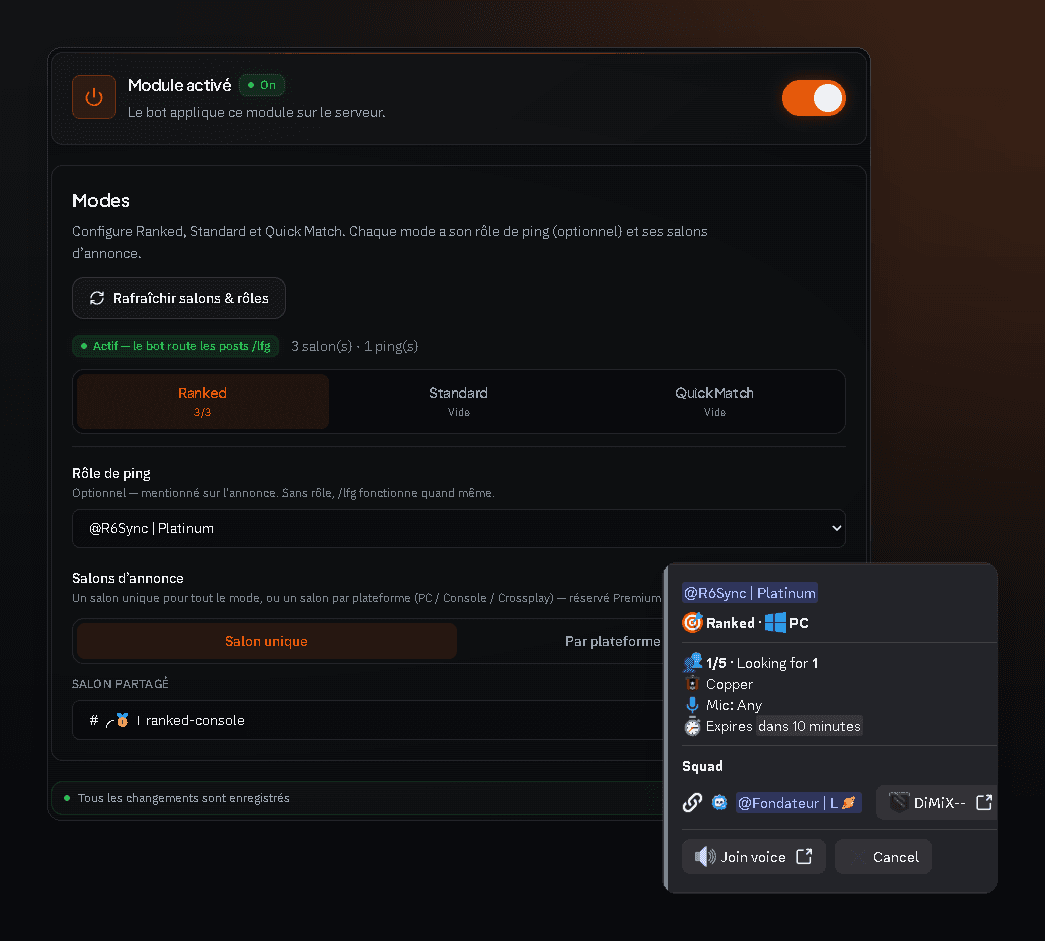
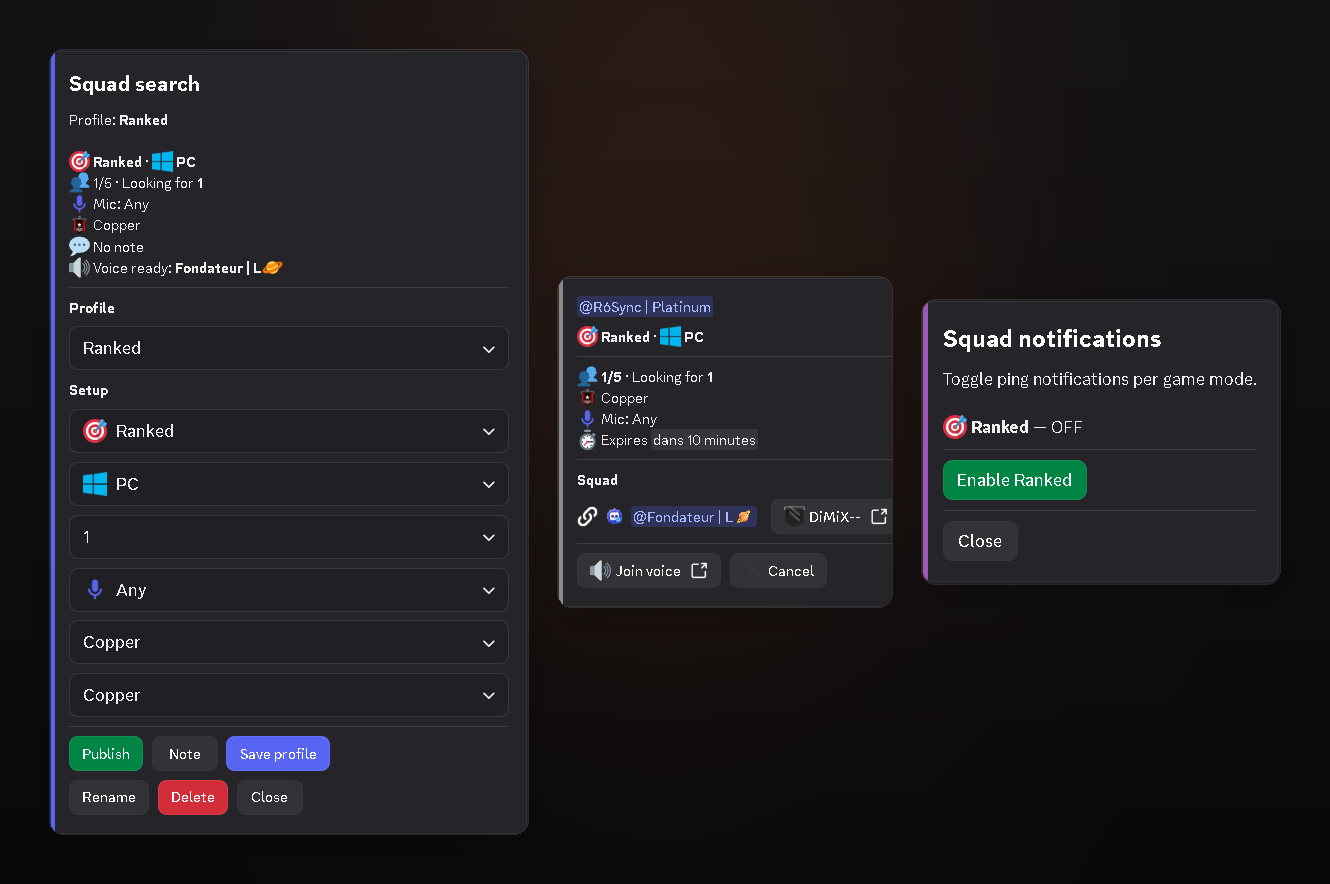
LFG / Stack Finder module
In the modules catalog (Community), LFG lets players post a stack search with /lfp from a voice channel; notifications are managed with /lfg. You configure announcement channels and ping roles per mode (Ranked, Standard, Quick Match, etc.). Goal: stop lost messages in general and centralize stack calls. Enable it from the dashboard — same source as the bot. The module description in SETUP_MODULES matches what admins see in Features and in the module editor.
- LFG posts from voice
- Ping roles per game mode
- Dashboard config = bot execution
/lfg and /lfp commands
/lfg manages LFG ping notifications by game mode (player preferences). /lfp posts a squad search from your current voice channel — classic looking-for-players flow. Both are member commands; option details are on the Commands page generated from bot slash definitions. Keep announcements short: mode, rank goal, mic requirement, and platform — the module channels exist so players do not negotiate all of that in #general.
Free vs Premium Plus (split channels)
Base LFG (stack finder) is included on Free per the server Premium grid (SERVER_COMPARE_ROWS / FREE_SERVER_FEATURES). PC / Console / Crossplay channel split (lfg_split) requires Plus (and Pro). Custom nickname templates follow the same Plus logic; nickname sync presets stay Free. Enable the module, test /lfp, then upgrade to Plus if your mixed-platform community needs separate channels.
- Shared LFG: Free
- PC / Console / Crossplay channels: Plus+
- No player Premium required to post LFG
Roll it out on your server
Invite R6Sync, finish setup, enable LFG in the catalog, pick channels and ping roles, then announce /lfp and /lfg. Pair with Ubisoft verification if only linked accounts should join “serious” stacks. Module catalog help and Features (#lfg) detail the module; Commands lists /lfg and /lfp. Guided setup can also pre-select community profiles that include LFG — you can enable the module later without restarting everything.
Siege community best practices
Name channels clearly (#lfg-ranked, #lfg-quick) so /lfp lands in the right place. Document ping roles in a rules channel. On Plus, split PC / Console / Crossplay to cut incompatible stacks. Watch spam: a dedicated channel plus targeted pings beats @everyone in general. Pair LFG with R6 Status (Pro) so players see if Siege is down before posting a search. Link the Commands page in your welcome channel so /lfg and /lfp stay discoverable.
Frequently asked questions
Is LFG free?
Yes for base stack finder. Separate PC / Console / Crossplay channels need server Premium Plus or Pro.
Difference between /lfg and /lfp?
/lfg manages pings / notifications by mode; /lfp posts a stack search from your voice channel.
Do players need Ubisoft for LFG?
LFG does not replace linking — linking still powers roles and verification. Combine LFG + verification for more reliable stacks.
LFG module
Read also
Organized Siege stacks in Discord
Enable LFG, configure channels, share /lfp. Upgrade to Plus if you split PC and console.