
Overview
The R6 Discord bot built for Rainbow Six Siege
A living Rainbow Six Siege Discord server needs up-to-date rank roles, trustworthy player identity, and tools members understand without reading ten rule pages. R6Sync is a Discord bot paired with a web dashboard: admins enable modules (rank roles, Ubisoft verification, nickname sync, R6 server status, Ubisoft news, LFG…) and players use commands like /link, /sync, /stats, or /leaderboard. Everything comes from the same Setup V3 catalog — what you configure online, the bot applies on Discord. This guide orients you before opening the dashboard: why a Siege-focused bot, what it actually does, and the minimal path to an operational server in minutes.
Why a Siege-focused bot?
Generic bots don’t know ranked seasons, the Copper → Champion ladder, or the Ubisoft / Stats.cc flow that feeds rank and platform. R6Sync is built around those needs: after account linking, the bot can assign Discord roles aligned to current rank, season, match volume, or career peak — without you manually editing roles after every promotion. For access, the verification module keeps newcomers in a dedicated channel until they link Ubisoft via /link — useful for a “serious ranked” Discord. For community, /stats sends a shareable image card, /leaderboard compares MMR, and the LFG / Stack Finder module centralizes stack searches from voice. Admins stop juggling role spreadsheets and pasted Stats.cc links: bot and site expose the same profile once the account is linked.
- Synced roles: rank, PC/Console platform, season, matches, max rank
- Entry verification + configurable Discord nicknames
- Stats (/stats), LFG (/lfp, /lfg), R6 status and Ubisoft news
Bot + dashboard: one catalog
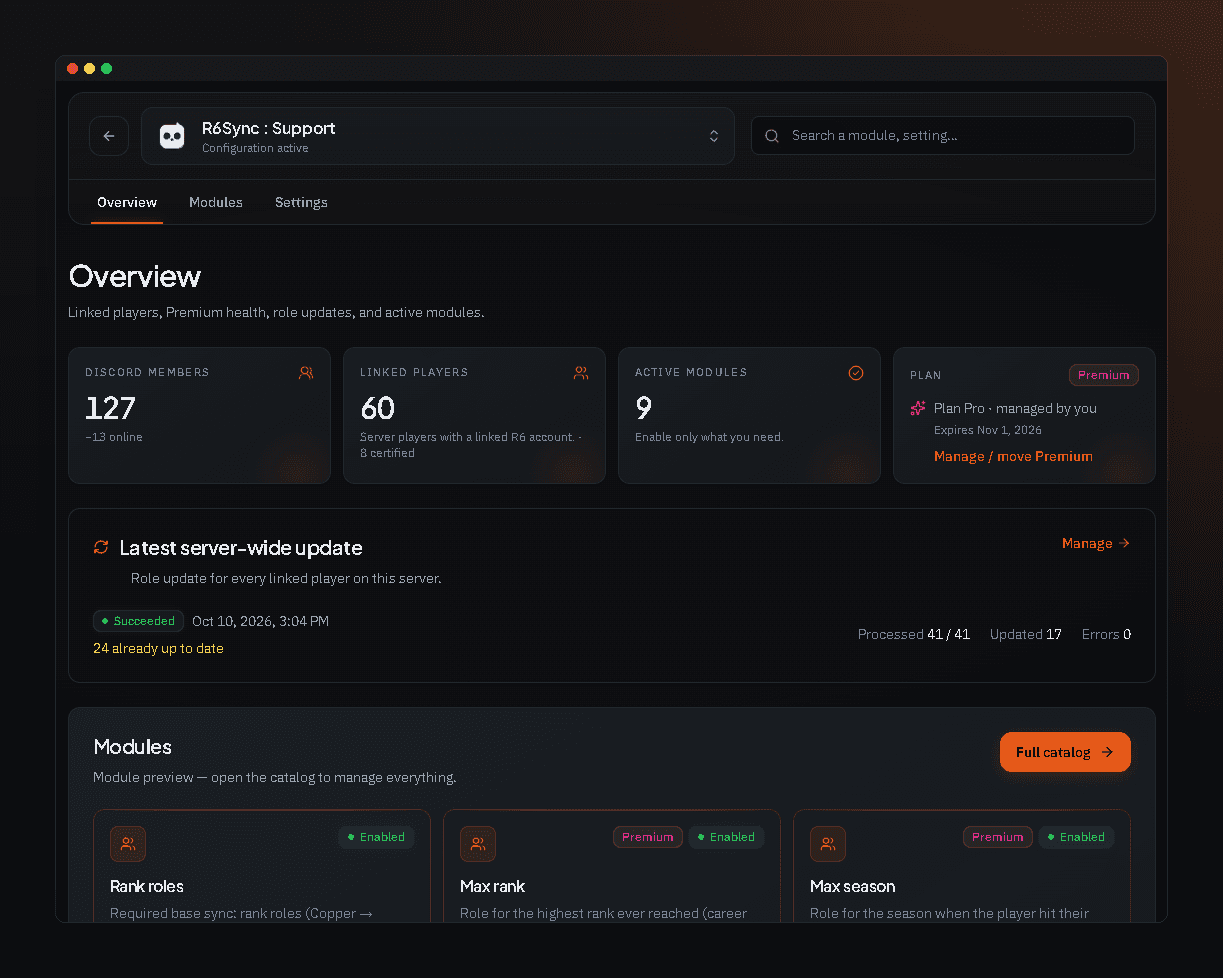
R6Sync isn’t “a bot with a brochure site”: the dashboard is the control plane. Sign in with Discord, pick your server, run guided setup (permissions, role hierarchy, log channels), then enable modules one by one in the catalog. Each entry is a real brick — rank roles (required base), max rank, max season, cosmetic season roles, match-volume tiers, auto-sort, verification, nickname sync, R6 server status, Siege patches & news, LFG. Track progress, repair missing Manager or rank roles, and preview product screenshots on Features and Help. Players stay on Discord for /link and /sync; the dashboard is mainly for linking Ubisoft, customizing the /stats card (free or Player Premium themes), and managing global preferences.
Steps 1–3 — getting started as admin
You don’t need all twelve modules on day one. A minimal path is enough for a coherent server: invite, dashboard auth, setup, then two or three modules depending on your goal (casual community vs competitive roster).
- Step 1: invite R6Sync to Discord (OAuth) with Manage Roles if you want rank sync
- Step 2: open the R6Sync dashboard and sign in with the same Discord admin account
- Step 3: run server setup, place the bot role above roles it must assign, enable at least rank roles (+ verification if you want an Ubisoft gate)
Steps 4–5 — player path on the server
Once the bot is present, every member who wants automatic roles or /stats for their own profile must link Ubisoft. The standard flow is /link on Discord (or the dashboard Account page), then /sync to force an immediate update after a ranked session. /stats and /leaderboard work for the community without extra admin toggles — they aren’t switch modules like LFG, but they need a link to show the right profile. State clearly in #rules: link to the linking guide, reminder that without /link there are no rank roles, and where to post /lfp if LFG is on.
- Step 4: each player links Ubisoft (/link or dashboard Account)
- Step 5: /sync after a long ranked session; /stats to share the card
Premium, Free, and honest limits
The bot core — basic rank sync, verification, shared LFG, standard /stats — stays usable on Free. Player Premium mainly unlocks advanced /stats card customization (themes, media) and options like global sync. Server Premium Plus or Pro opens admin comforts: separate LFG channels PC / Console / Crossplay, custom nickname presets, R6 server status in ops modules, etc. R6Sync doesn’t replace Ubisoft Connect or change your MMR: it reads the linked profile and reflects the known state at sync time. If rank looks stale, /sync and Discord hierarchy are the first checks.
Where to go next
This guide sets the frame; dedicated pages go deeper. For Copper → Champion roles and Discord mapping, see the rank roles guide. To require linking at the gate, combine verification and the Ubisoft guide. For /stats, LFG, or server status, intent guides and Help cover commands, permissions, and troubleshooting. The Commands page lists /link, /sync, /stats, /leaderboard, /lfg, and /lfp aligned with the deployed bot.
Frequently asked questions
Is R6Sync free?
Yes for the bot, dashboard, basic rank sync, verification, and standard LFG. Player Premium (/stats card) and server Premium (LFG split, advanced ops) add options documented on the Premium page.
Do members need Ubisoft for everything?
For automatic roles, /stats on your own profile, and entry verification, yes. You can invite the bot without forcing a link, but rank and verification modules lose their point without /link.
Are PC and console supported?
Yes — sync reads the linked Ubisoft profile. Rank roles can assign PC and Console platform roles per your dashboard mapping.
Which commands do members use most?
/link and /sync for Siege identity, /stats for the card, /lfp and /lfg when the LFG module is on. /leaderboard complements for server MMR comparison.
Does the bot create Discord roles?
You can map existing roles or let R6Sync create missing ones on link / sync. Setup reminds you to place the bot role above roles it manages.
See all features
Read also
Your Siege server, synced
Invite the bot, open the dashboard, enable modules. Rank and Ubisoft guides cover the next steps.